Nodes
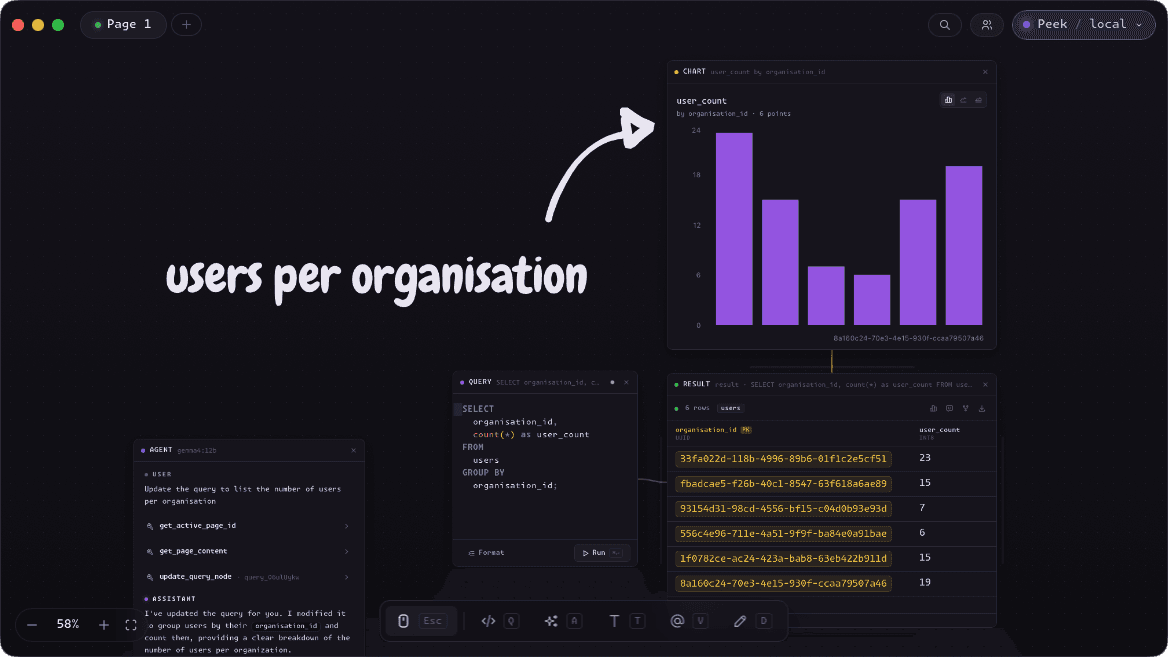
Everything on the canvas is a node. Each node type has a focused purpose - compose them freely to build up your data workflow.
Query
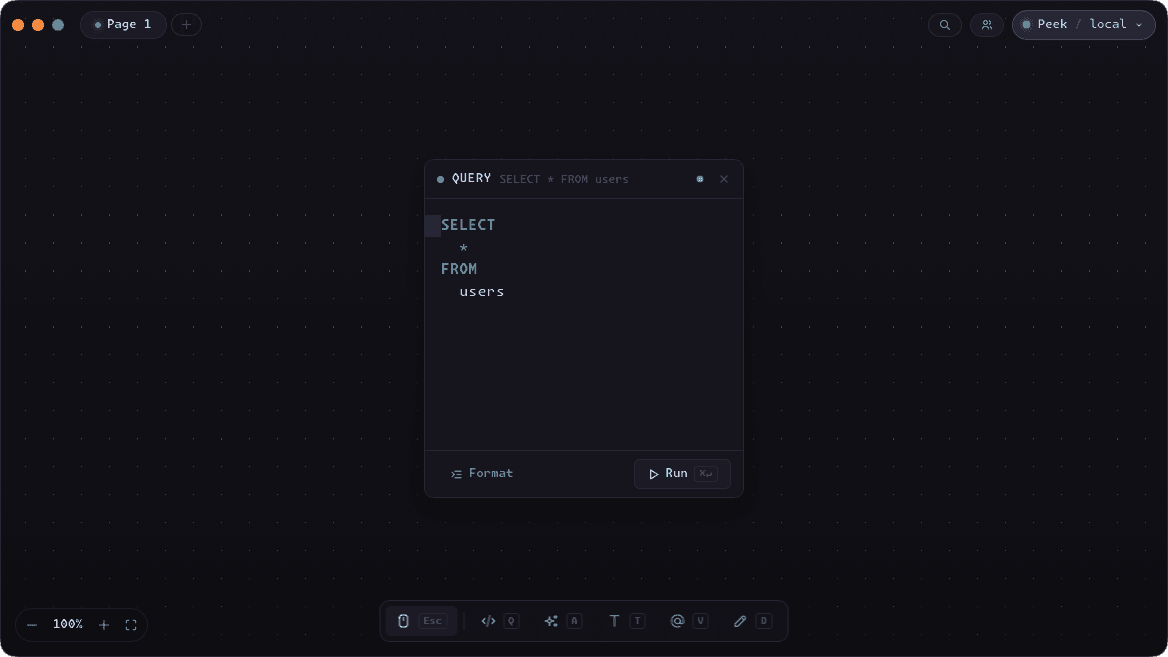
A Query node is where you write SQL. It holds a single statement, runs against the active connection, and sends its output to any connected Result node.
Press S to format the query, Enter to execute, or click the run button in the node header. The last run time and row count are shown inline so you always know the result age.
Query nodes support variable interpolation - any Variable node wired into a Query node replaces the matching @name placeholder at run time.
Result
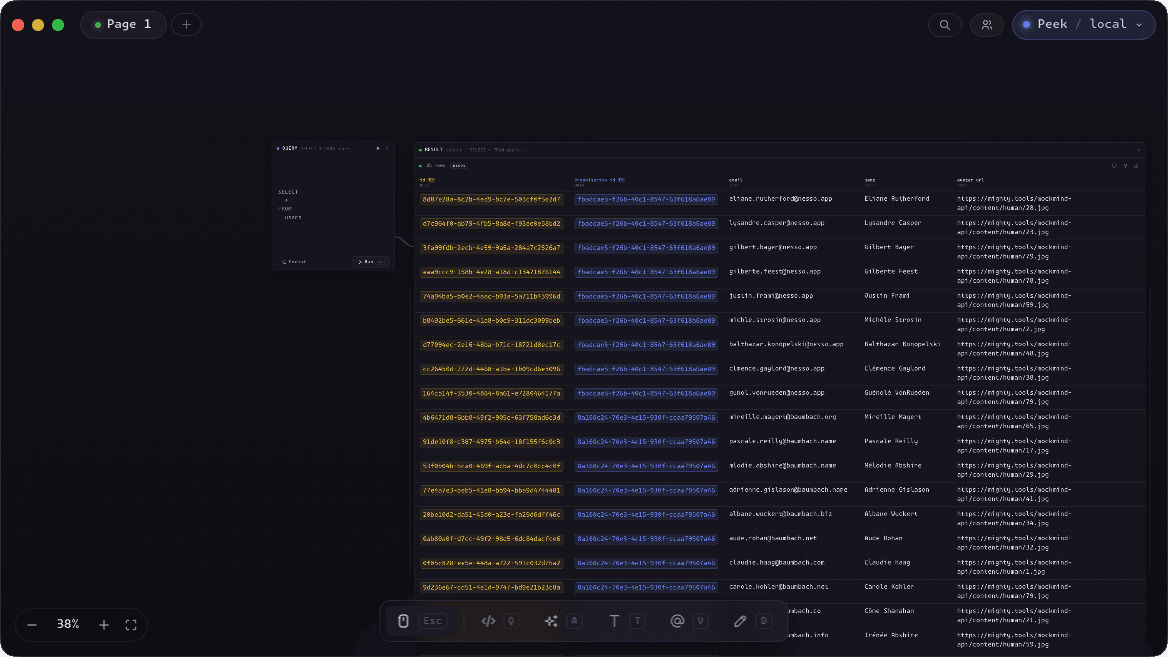
A Result node displays the tabular output of a connected Query node. Hold while dragging over results to select multiple nodes.
Right click a cell to copy it's value, or create a variable node pre-populated with the cell value. You can also right click column headers to export the column data or use the entire column as a variable.
Result nodes can be wired to agent nodes to explicitly give the agent result data, which is disabled by default to avoid leaking data to AI agents.
Agent
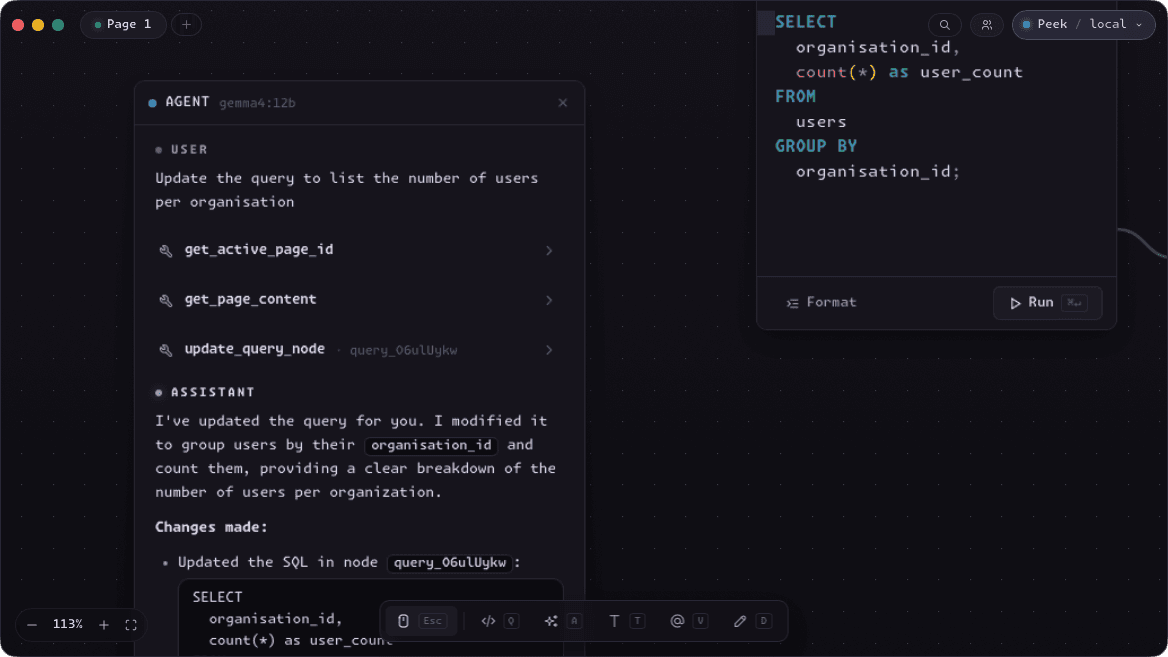
An Agent node opens a conversation with Peek's AI assistant. You can ask it to write a query, explain a result, suggest an index, or reason over anything else on the canvas.
The agent is canvas-aware - it can read the SQL in connected Query nodes and the schema of the active connection, as well as create pages, update nodes and move the camera. It never receives raw query results unless you explicitly wire it intointo the chat, so sensitive row data stays off the wire.
One thing agents can't do is execute queries, so you don't have to worry about them running amok on your data.
Chart
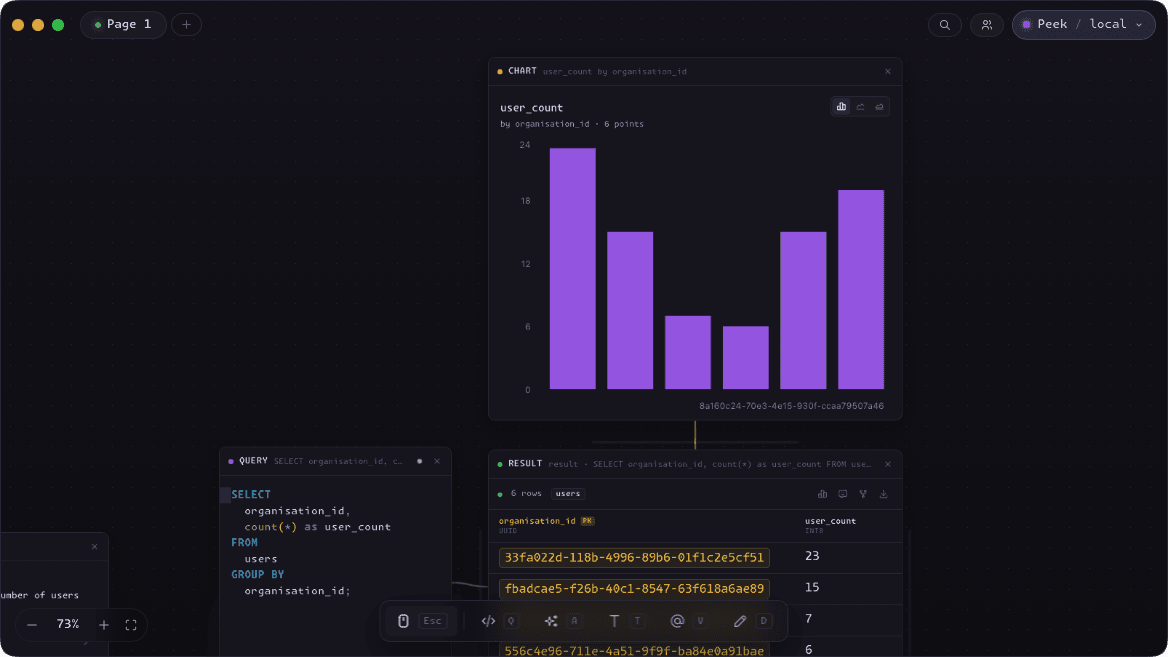
A Chart node turns a Result into a visualisation. Any Result node that has chartable data, i.e. columns with numeric values, can spawn a chart node.
Chart nodes show bar charts by default, but other chart options are available to switch to in Chart node toolbar.
Variable
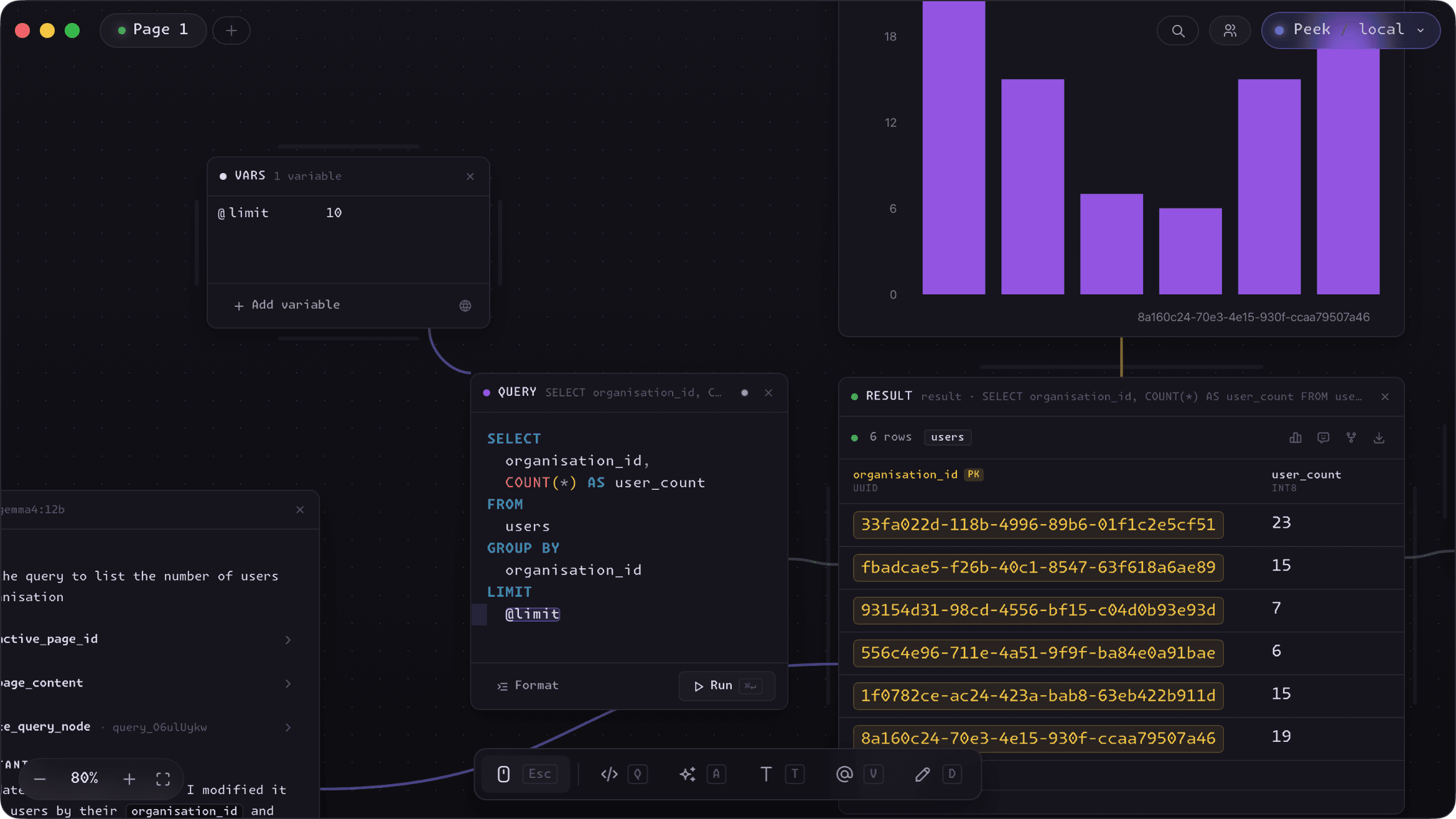
A Variable node holds a named value - a date range, a user ID, a status string - that can be injected into one or more Query nodes. Change the value once and every connected query automotatically gets the new value.
Variable values can also be arrays, to simplify WHERE ... IN (@ids) queries. Just click the array button on the varable to turn it from a value to a list
Reference a variable in SQL with the @-syntax:WHERE created_at > @start_date. The variable name must match the node label exactly (case-sensitive).
Finally, can you have a variable automatically connect to all query nodes on the canvas, as well as any future query node by making the variable node global.
Draw
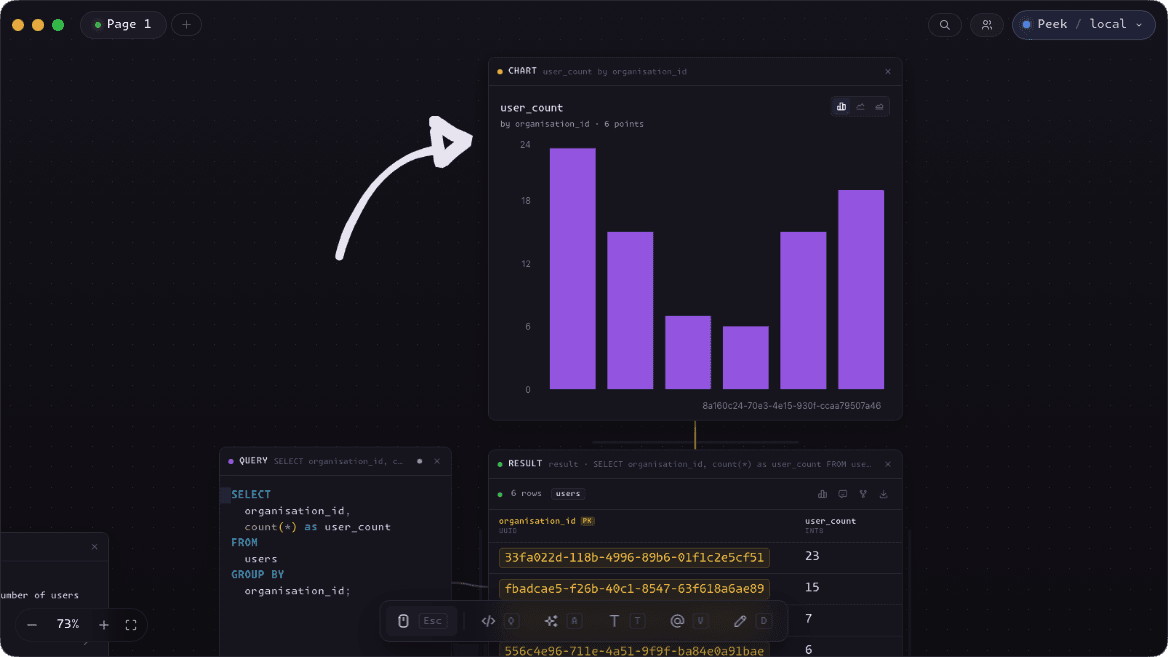
A Draw node gives you a freehand drawing surface directly on the canvas. Sketch a diagram, circle an anomaly in a result set, or annotate a section of your workflow with a quick illustration.
Drawings are vector paths stored in the node, so they stay crisp at any zoom level and move with the canvas like any other node.
Text
A Text node is a freeform note. Use it to document a canvas, label a section of the workflow, or leave a comment for a collaborator.
Text nodes have no connections and do not affect query execution; they exist purely for human context.