Nodes
Everything on the canvas is a node. Each node type has a focused purpose - compose them freely to build up your data workflow.
Query
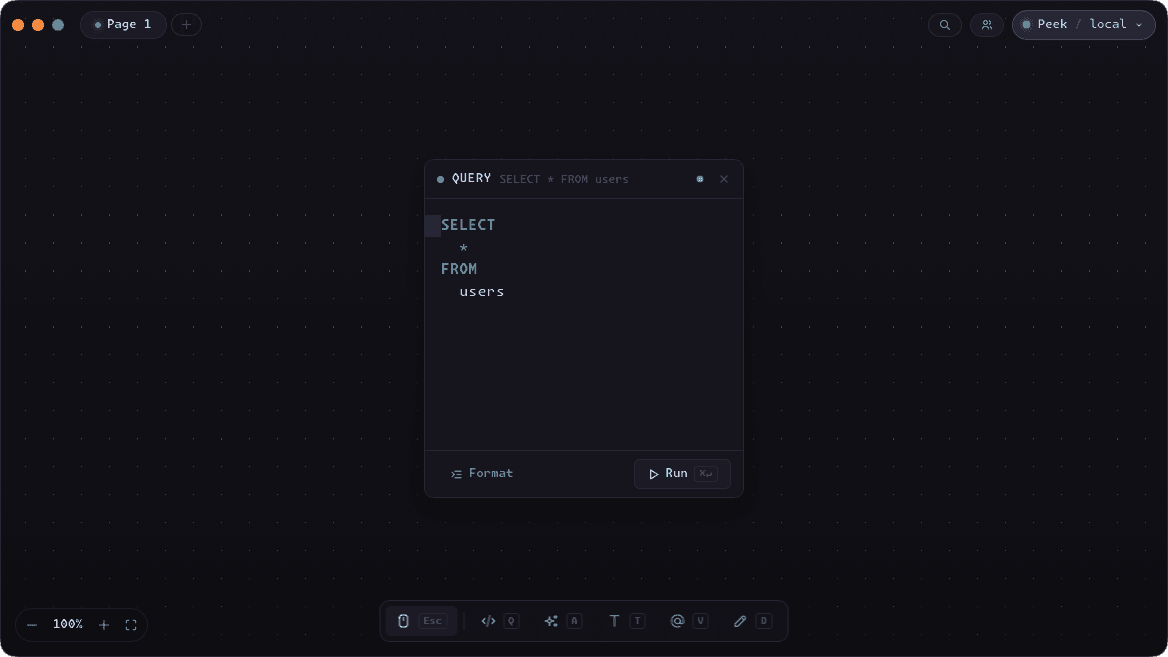
A Query node is where you write SQL. It holds a single statement, runs against the active connection, and sends its output to any connected Result node.
Press S to format the query, Enter to execute, or click the run button in the node header. The last run time and row count are shown inline so you always know the result age.
Query nodes support variable interpolation - any Variable node wired into a Query node replaces the matching @name placeholder at run time.
Result
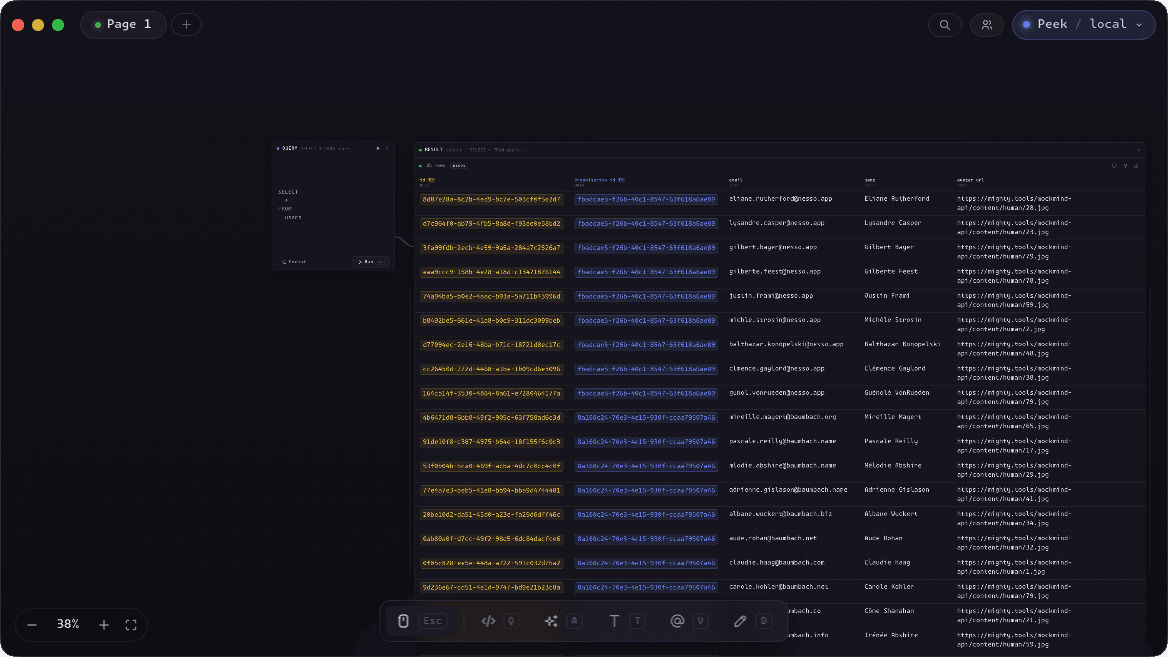
A Result node displays the tabular output of a connected Query node. Hold while dragging over results to select multiple nodes.
Right click a cell to copy its value, or create a variable node pre-populated with the cell value. You can also right click column headers to export the column data or use the entire column as a variable.
Result nodes can be wired to agent nodes to explicitly give the agent result data, which is disabled by default to avoid leaking data to AI agents.
Agent
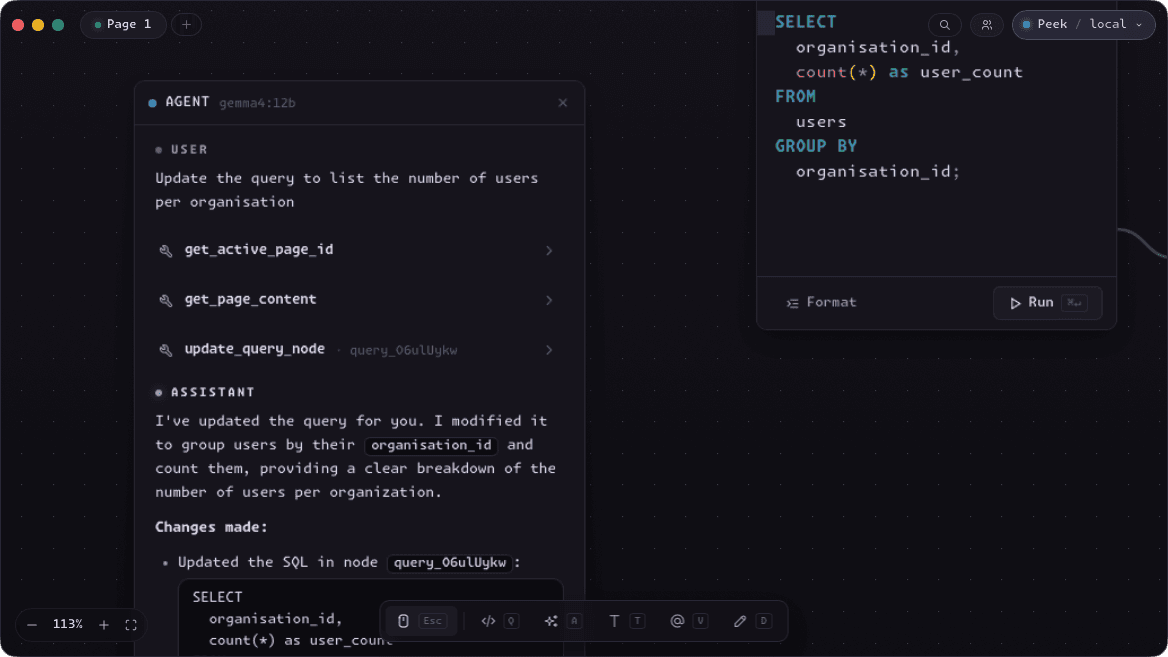
An Agent node opens a conversation with Peek's AI assistant. You can ask it to write a query, explain a result, suggest an index, or reason over anything else on the canvas.
The agent is canvas-aware - it can read the SQL in connected Query nodes and the schema of the active connection, as well as create pages, update nodes and move the camera. It never receives raw query results unless you explicitly wire it into the chat, so sensitive row data stays off the wire.
One thing agents can't do is execute queries, so you don't have to worry about them running amok on your data.
Chart
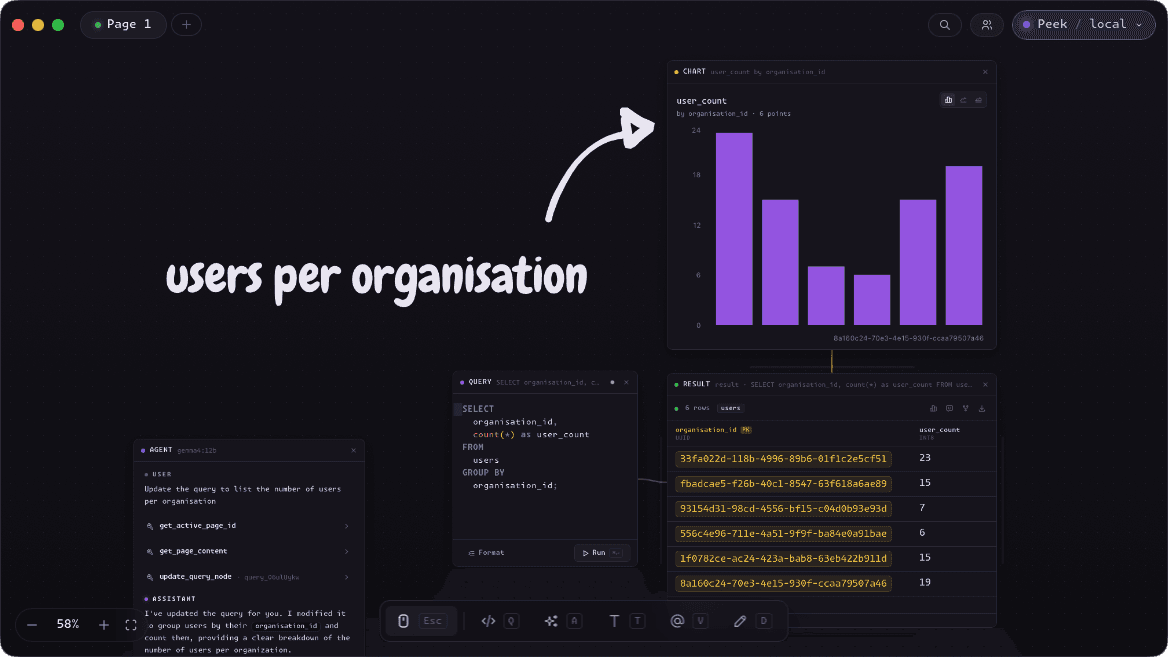
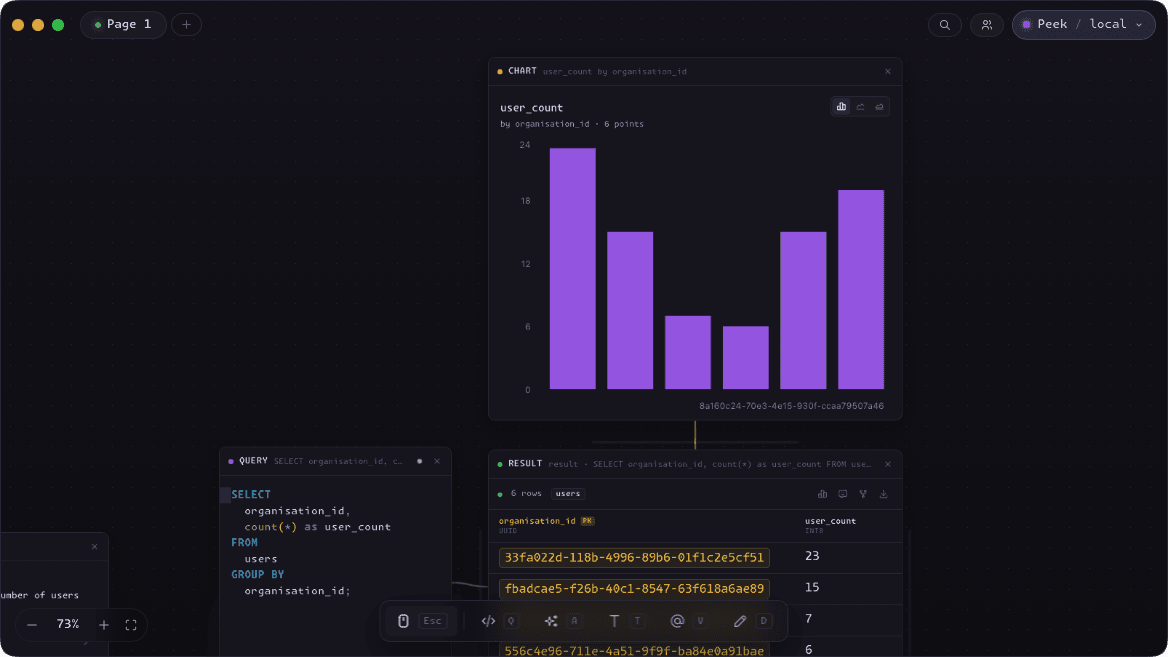
A Chart node turns a Result into a visualisation. Any Result node that has chartable data, i.e. columns with numeric values, can spawn a chart node.
Chart nodes show bar charts by default, but other chart options are available to switch to in the Chart node toolbar.
Variable
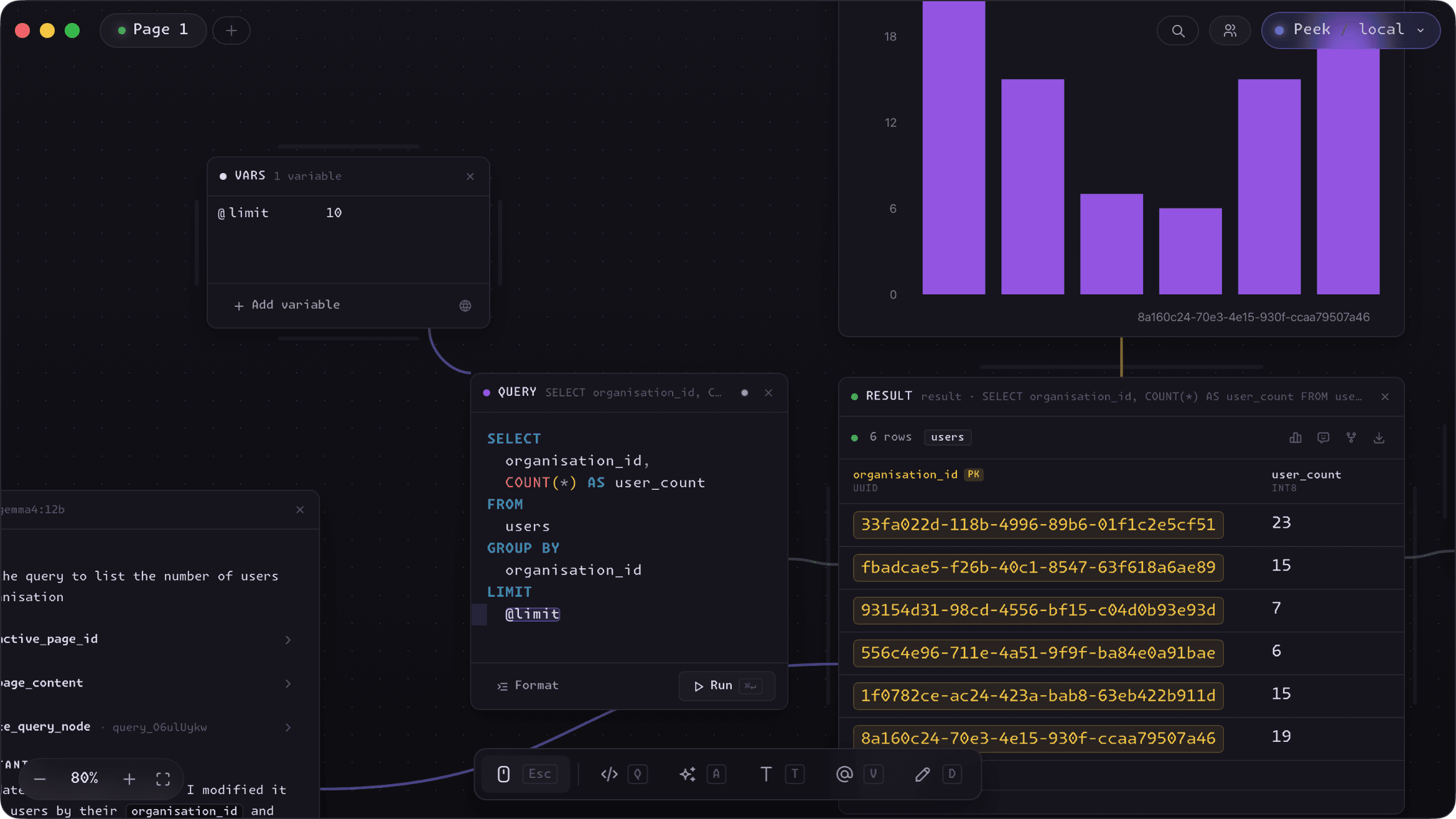
A Variable node holds one or more named rows - a date range, a user ID, a status string. Reference any of them in SQL with the @-syntax, like WHERE created_at > @start_date. The name must be a valid identifier and is matched exactly - @start_date is case-sensitive - and Peek is careful about where it substitutes, so an email like users@example.com is never mistaken for a variable.
Variables reach a query through an edge: wire a Variable node into a Query node and its values become available there. Change a value once and every connected query picks it up, so re-running an entire analysis with a new ID or date is a single edit.
Flip a row into array mode with the brackets toggle and it holds a list instead of a single value. Lists expand to a comma-separated sequence at run time, which makes WHERE id IN (@ids) queries effortless - no hand-assembling values.
Toggle a Variable node global and it wires itself to every Query node on the canvas - including ones you add later. It's the easiest way to set a shared @tenant_id or environment value once and have the whole canvas honor it automatically.
Draw
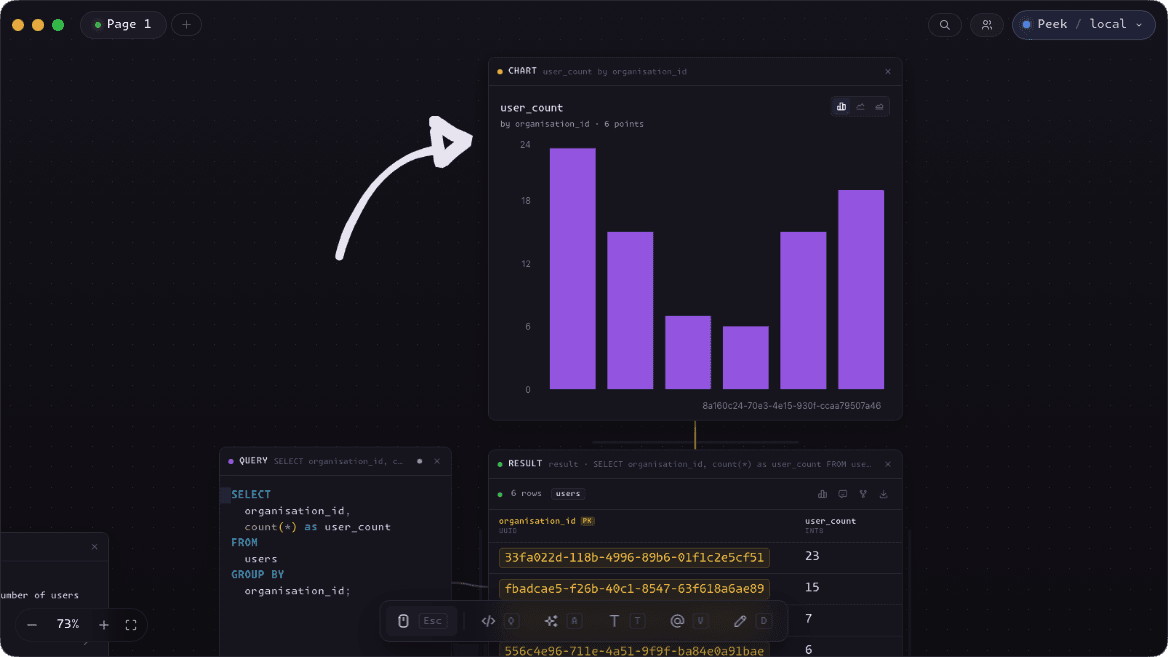
A Draw node gives you a freehand drawing surface directly on the canvas. Sketch a diagram, circle an anomaly in a result set, or annotate a section of your workflow with a quick illustration.
Drawings are vector paths stored in the node, so they stay crisp at any zoom level and move with the canvas like any other node.
Text
A Text node is a freeform note. Use it to document a canvas, label a section of the workflow, or leave a comment for a collaborator.
Text nodes have no connections and do not affect query execution; they exist purely for human context.